Delay in Printing PDF Documents

agh55

Newbie to Printing
Joined
Jan 9, 2024
Messages
6
Reaction score
2
Points
8
Printer Model
Epson ET-2856
Hi, I have an Epson ET2856 printer and I get excessive delays when trying to print PDF documents. It takes approx. 95 seconds for the print to start, and when it starts it will stop for a few seconds before it starts again. On average it will take approx. 170 seconds to print the entire document. I'm using Adobe Reader and I have tried Foxit, which has the same delays. Printing from Word, Excel is OK.
Can anyone in the forum please offer a solution.
 

Tony4597

Printer Guru
Joined
Jan 20, 2021
Messages
131
Reaction score
80
Points
105
Location
Cheshire, UK
Printer Model
Epson Surecolor SC P800
Just a couple of suggestions:

Does this happen with all documents? Have you tried others with either text or images?

Even though Word etc print OK make sure that your printer drivers up to date.

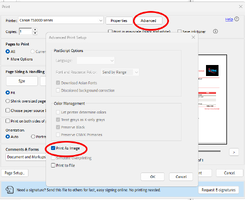
Sometimes delay can occur due to missing or damaged fonts or graphic issues. Have you tried selecting Print as Image which treats the data differently?
 

Attachments

  • PrintasImage.png
    PrintasImage.png
    54.9 KB · Views: 17

thebestcpu

Printing Ninja
Joined
Dec 8, 2024
Messages
194
Reaction score
117
Points
80
Printer Model
Epson SC P900
I won't take credit for this list of info as it was online:

Slow printing that only happens with PDF files (while Word and Excel print normally) usually means the printer driver is struggling to process the PDF content before printing. This is especially common with Epson EcoTank printers like the ET-2856 when PDFs contain complex graphics, fonts, or scanned images.


First, try a diagnostic test called “Print as Image.” In Adobe Reader, go to File, then Print, then click Advanced, and turn on “Print as Image,” then print again. If the PDF prints much faster and without pauses, that confirms the slowdown is caused by how the PDF is being rendered rather than by the printer hardware.


Next, check whether print quality settings are forcing slow processing. In the printer preferences, make sure quality is set to Standard instead of High or Photo, turn duplex printing off just for testing, and make sure Quiet Mode is turned off. Retry the PDF.


If you are on Windows, open Printer Properties, go to the Advanced tab, and select “Spool print documents” and “Start printing immediately,” and uncheck “Enable advanced printing features.” Then try printing again. If you are using Wi-Fi, temporarily test with USB to rule out network delays.


Another useful test is to export the PDF as an image and print that. If the image prints quickly, the issue is with PDF rendering rather than printing speed. Very large or scanned PDFs (for example 300–600 DPI scans) can cause pauses while the printer processes each page.


If you are on macOS or Windows using the default “AirPrint” or class driver, install Epson’s full driver package from Epson’s support site and select that driver instead, because the basic driver can be slower with PDFs. Also check whether a firmware update is available for the printer, because Epson has released fixes in some updates for slow PDF processing.


To help narrow this down further, please tell me: your operating system and version (Windows or macOS), whether the printer is connected by USB or Wi-Fi, whether enabling “Print as Image” made the PDF print faster, and whether the slowdown happens with every PDF or mainly with scanned or graphics-heavy ones. With that information I can guide you to the exact setting or fix.

That might give you some directions to explore
Hope it helps
John Wheeler
 

agh55

Newbie to Printing
Joined
Jan 9, 2024
Messages
6
Reaction score
2
Points
8
Printer Model
Epson ET-2856
Hi John / Tony

Thanks for all your help, by turning on " print Image" it has resolved the problem. I appreciate all your advice and guidance.
 
Top